All customers when checking into your Onsight Pro database need to have a "membership". The membership types a customer can have can be boiled down into four categories:
- Prepaid
- Punch Card
- Day Pass
- Recurring
Customers can have multiple memberships active on their profile with different purposes (ex. punches for yoga classes, prepaid for a youth program, etc). This requirement of a "membership" is how Onsight Pro is able to track a customer's relationship to your database properly along with a live check-in history view.
Below is a step-by-step guide on how to create a Monthly (EFT) Recurring Membership product with the option of adding additional family members to the product.
1. Click the Settings (🔧) icon.

2. Click "Manage Memberships" to create a new membership product.

3. Click "Add Membership" in the top right corner.

4. A membership wizard will display next. Fill out all fields describing what you want your membership to be. In this example, our membership will be an EFT (recurring) with the option to add 2 family members.

5. After selecting all applicable options, click continue to move onto the configuring membership step.

6. When designing a membership that will be available in multiple locations, you can make edits per location (ex. Location A charges $100 while Location B charges $95). In this example, we are going to say that the membership rates are all the same amongst every location.
Therefore we will check the "combine" box, grouping all the different locations into a offering ready to be configured.

7. Click the "Edit" icon to begin setting up your membership.

8. Enter the price value of the membership. This is what the primary/individual customer should expect to pay monthly.
Note: This price will be different if they add family members.

9. Guest Allowance refers to how many passes this member can give to another customer. In this example, we will choose 2.

10. Time period refers to how frequently these Guest Passes are available. In this case, we are going to state monthly.
Note: Monthly refers to the Calendar month, NOT 30 days from the first use. Therefore we would expect this maximum 2 to reset every 1st of the month.

11. The Sign-Up Fee is a one-time charge a customer will pay for becoming a member. Think of this like an initiation charge.

12. Billing Frequency refers to how often a customer with this type of membership will be charged. For this example we will select "Monthly".

13. Recurring Freeze Amount refers to the price a customer will be charged when their membership is frozen.
Note: In a family membership, the frozen rate is per customer on the membership. You will have the option to escalate the dues of the second, third, or more member to the primary member's rate to prevent freeze abuse.
(Ex. Primary member is $100 and secondary member is $50. If the primary freezes, the dues of the second can be set to escalate to $100 so that the customer is not getting away with paying a $60 two-person membership.)

14. Freeze Fee is a one time charge that a customer must pay to be frozen. This charge will only be applied each first time a customer on the membership freezes if enabled.

15. When configuring a Membership, you'll have the option to enable if multiple people can be added to the sale. From here you can configure the "label" of that customer and the amount they will pay.

16. After adding multiple member options, you can choose to make them "required". By doing this, the customer will have to add whatever amount you've required.
Note: Onsight Pro allows you to make a single membership offering that customers can choose to configure a second, third, or more person all in one transaction. Or you have the ability to make an offering that represents the Family/Group option.

17. Enabling Show Online Membership will mean that this product is available to be purchased online through your Online Membership Sale link.
Enabling Show on Kiosk will mean that this product is available on the Kiosk View for customers to make purchases in-store.
Enabling Anonymous Sales will mean staff can sell this in an Anonymous POS transaction (no customer).

18. Enabling Allow Returns will mean that this product can be returned in a POS transaction.
Adding a Quick-Add Barcode will mean that scanning a barcode while at POS will search this product.
Enabling Status will mean that this product is able to be searched in POS, Online, and sold. When Status is disabled, the product is no longer purchasable. Customers already configured with this membership are unaffected.
Membership Type has two options: Primary or Add-On. Primary provides facility access. Add-On grants additional access (or limited) based off classes, rentals or packages.
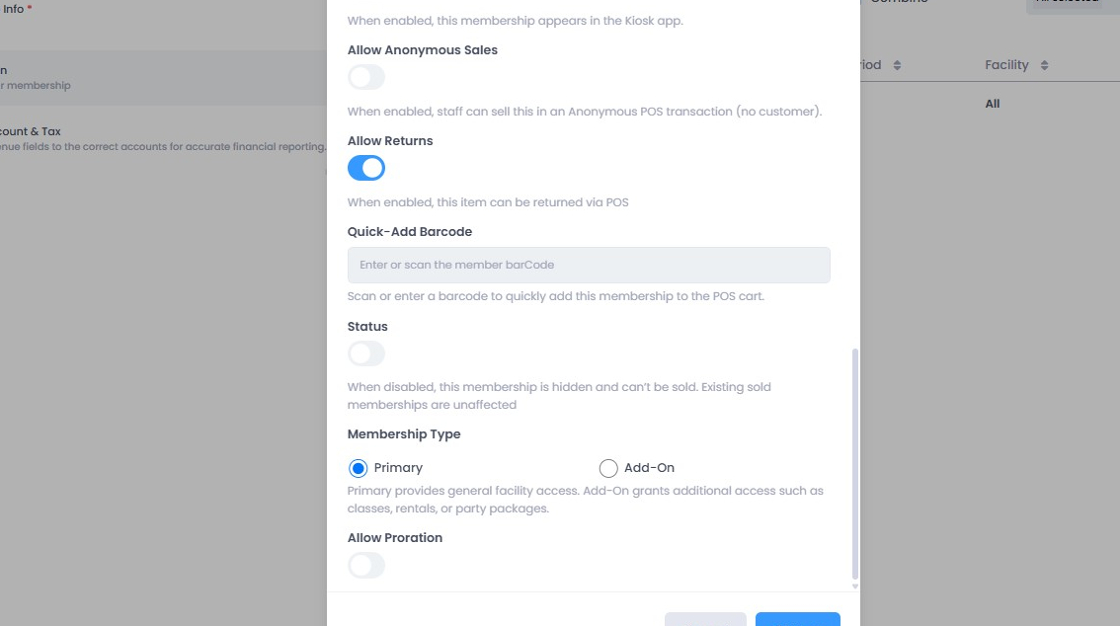
19. Allow Proration means that when this product is sold, the amount a customer will pay varies based off the remaining days in the billing cycle. If disabled, the customer will pay the full amount regardless of the day in the billing cycle.

20. When finished with the configuration menu, click the "Save" button.

21. Click "Continue" to move onto the next step.

22. The final step in the process is allocating the funds of the membership purchase into the proper revenue accounts. If a membership exists at multiple locations, this can be configured on a location-by-location basis or "combined" into a single revenue account.
In this example, we are going to say that the revenue accounts are all the same amongst every location. Therefore we will check the "combine" box, grouping all the different locations into a offering ready to be configured.

23. The Revenue Account, Sub Account, and Tax categories will show all available options when choosing where revenue associated with this product will appear for accounting/reporting purposes.

24. When you're finished creating your membership product, click "Save".

25. After creating your membership product, return to Settings by clicking the (🔧) icon.

26. Click "Online Membership Sales"

27. When the window prompts, you'll be able to share the link (either through an email) or place onto a web page for customers to purchase the membership offering they desire.

Related to