Getting started for the first time or adding an additional location, you'll complete the same onboarding process for Onsight Pro.
Below is a step-by-step guide on the information needed to create a new Onsight Pro facility:
1. Navigate to www.app.getonsightpro.com. From here, click on the hyperlink that reads, "Sign Up for Onsight Pro."
2. Input information for the main business contact of the organization as well as the name of the organization. The information on this step is internal and not customer facing.

3. Click "Save & Continue" after filling out the business contact information. You will receive a confirmation/welcome email designed to create your account and proceed with the onboarding process.
Note: If you do not receive the onboarding email or an error when trying to continue the onboarding, please contact Onsight Pro support at support@getonsightpro.com

4. Review the features that come with each plan. Afterwards, select the plan the best suits your business needs. You will be able to upgrade or downgrade at any time. Click the "Save & Continue" button when you're ready to proceed.
Note: You will be prompted with a window to enter credit card information. This is the card that will be charged your Onsight Pro subscription fee monthly. Onsight Pro bills on the 15th of every month.

5. Add all the information pertaining to the business. Images can be added at a later time if you don't have them ready at this moment. After finishing, click the "Save & Continue" button.

6. ACH Payments are currently only supported for US customers. If you would like to have them at your facility, and are located in the US, click "Yes" and then the "Continue" button.

7. Onsight Pro is fully integrated with our Stripe Custom payment processing plan. If you would like to take advantage of those rates, click "Yes". If you're using a 3rd party payment processor, click "No", and if you want to compare rates, click "I'm not sure". After selecting an option click the "Continue" button.

8. If you are already using Onsight Pro, and have a Stripe account, click "Yes". The same information can be used for your entire business. Click "Continue" when finished.

9. Onsight Pro will preview the default rates for using our integrated payment processor: Stripe. These rates are subject to negotiations. After reviewing, click the "Save and Continue" button to proceed.

10. As a final step, you can invite other staff members to the software in order to help you get started in building your database.
Note: If adding a second location, you can change the access of staff who already exist to grant them access to the new facility and do not need to re-invite them.
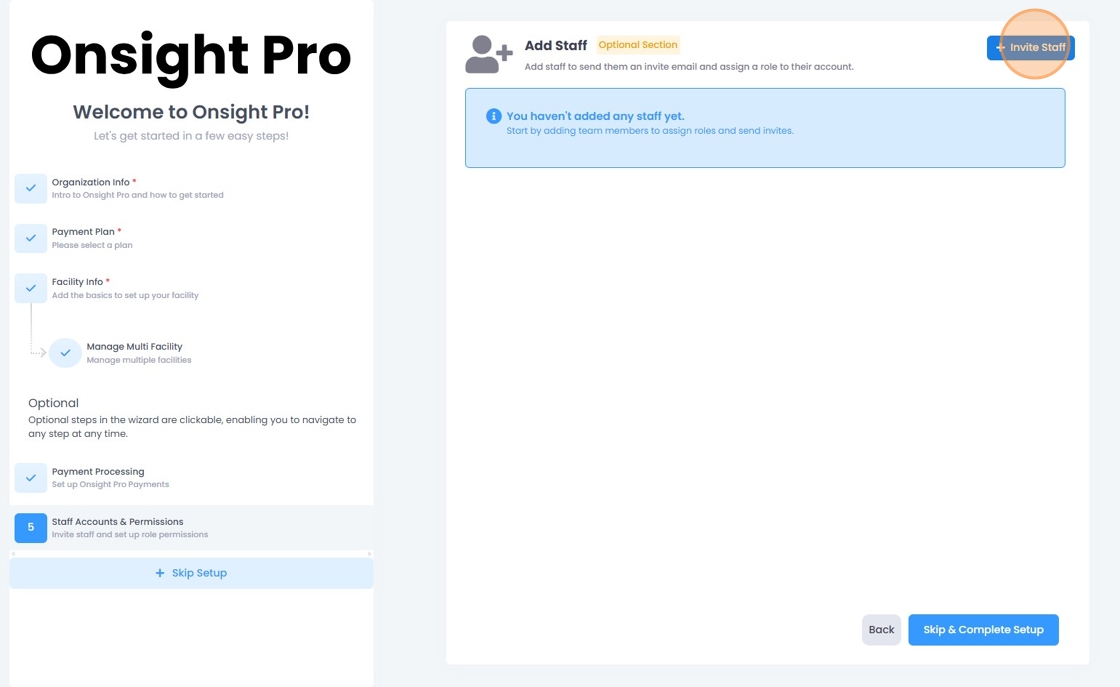
11. Enter all relevant information for the additional staff member. When you're finished click the "Save & Continue Setup" button.

12. Congratulations! You've finished the initial onboarding of Onsight Pro and you're ready to build out your database. Click "Proceed to Onsight Pro" to get building.

Related to