In Onsight Pro, membership configurations are automatically applied when a membership product is sold. This includes details like:
- Enrollment fees
- Guest passes
- Billing schedules
If you need to make changes to the configurations template, navigate to:
Settings > Customers > Manage Memberships.
Below is an example on Signing Up Member(s) for Annual Prepaid Memberships
1. Navigate to the Point-of-Sale (POS) tab

2. Click "Customer" to choose the individual you're selling a Membership to

3. 3. Click into the "Find Customer" field and type the customer name

4. After finding the customer, check the box next to their name to indicate the sale is for this customer. Click "Save" to add the customer to the transaction

5. Click the "Search Commodity" field and type the membership product name.

6. Click the "shopping cart" icon to add the product to the cart

7. Confirm the correct product has been loaded into POS. Click "Save" when ready to make the sale

8. Click "Tender" to complete the transaction
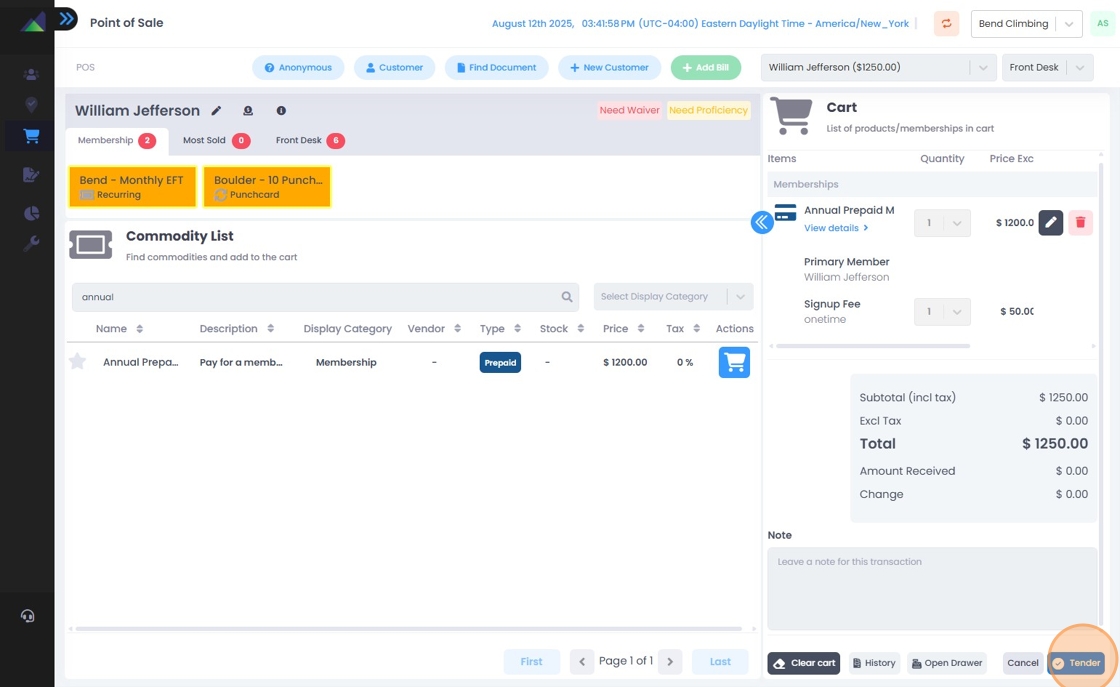
9. You'll be prompted to collect payment by either manually keying in credit/debit card details or if using the an integrated Stripe Terminal, by inserting, tapping, or swiping the card the customer wants to pay with. Click "OK" when finished

10. Onsight will prompt to check the customer in after the transaction is complete. Click "Yes" to continue

11. Onsight will pre-select the customer(s) who were part of the purchase to check them in. Confirm the correct customer(s) are ready to be checked in
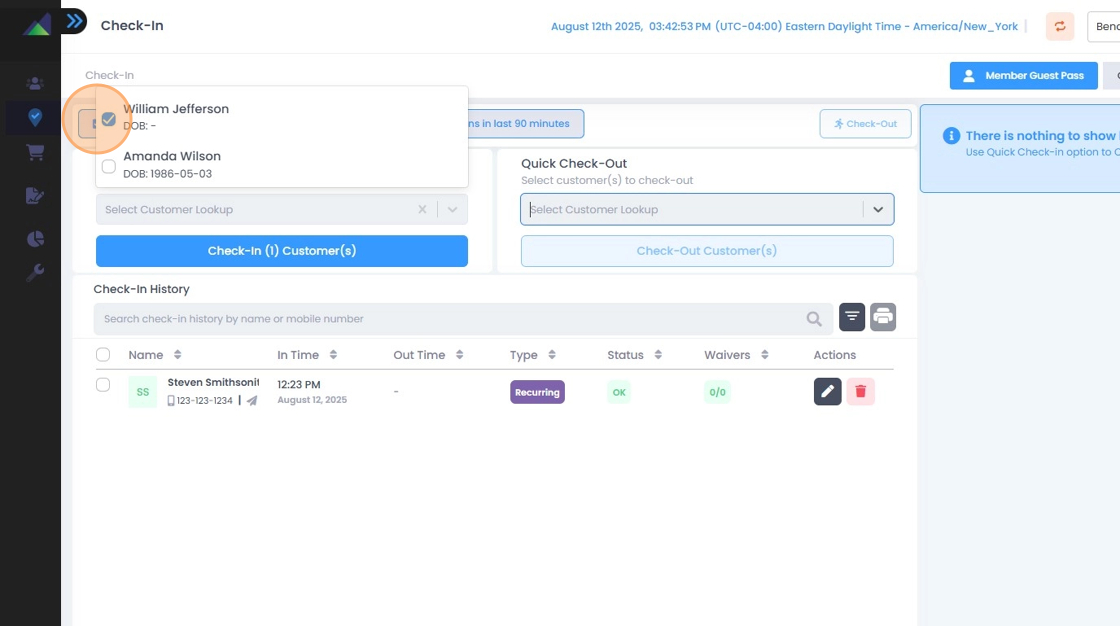
12. Click "Check-In Customer(s)" to finish checking in the customer(s) part of the membership sale

Related to